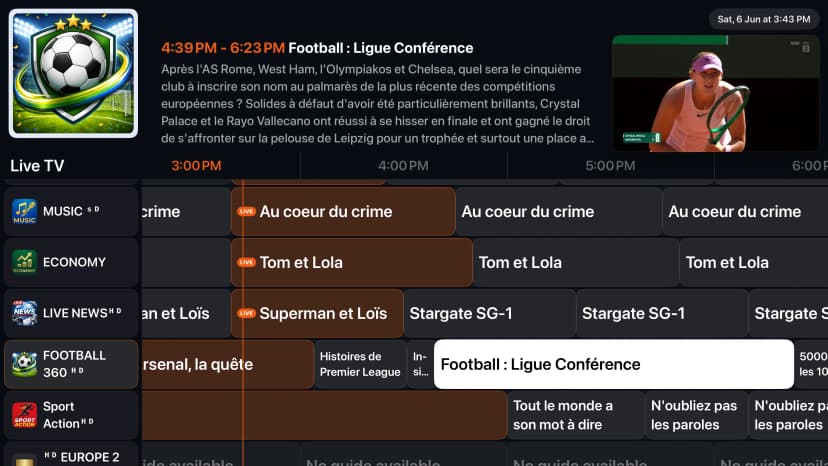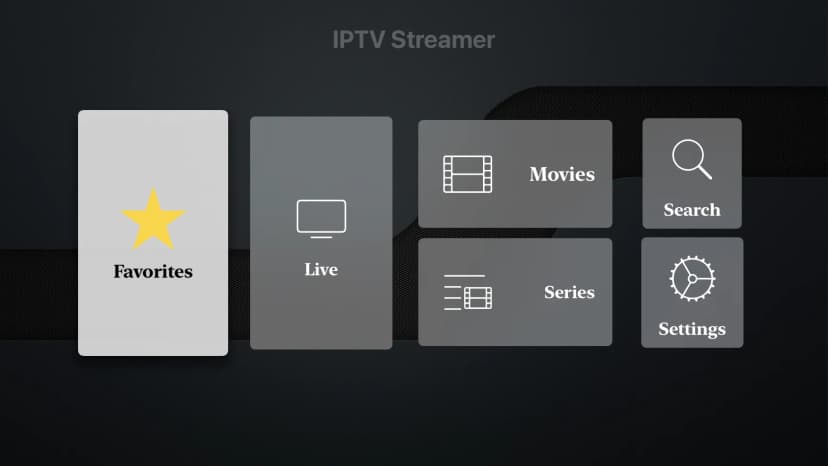
With access to thousands of live channels, movies, and TV shows from around the world, creating a safe family environment is essential. 1IPTV makes family safety simple. With our built-in parental control features, you can set a global PIN code and lock specific playlists or categories so that younger viewers only access age-appropriate content. In this guide, we walk you through enabling parental controls on all your connected devices.
1. Enable Parental Control in Settings
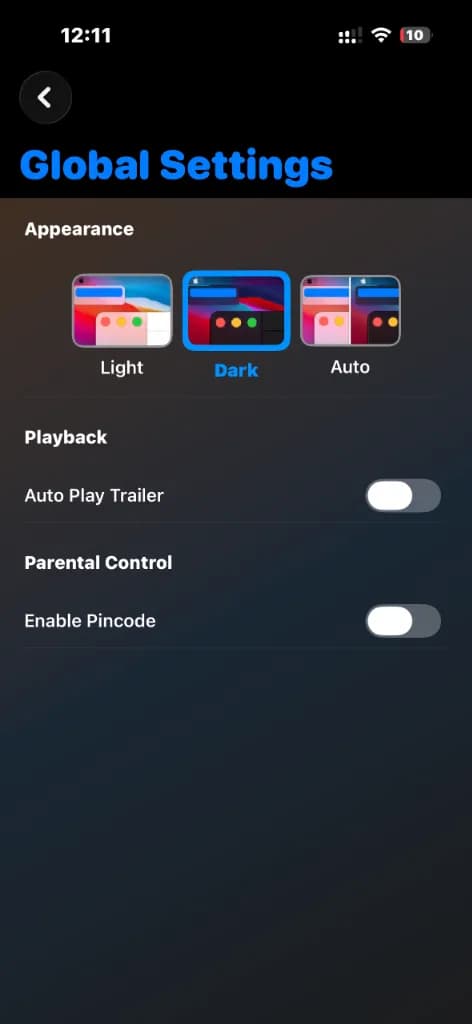
Open the 1IPTV application and head to the Global Settings dashboard. Scroll down to the 'Parental Control' section and toggle the 'Enable Pincode' option on. You will be prompted to set a secure 4-digit PIN code. This PIN will be required whenever someone attempts to access parental settings, unlock protected playlists, or toggle locks.
2. Lock Playlists and Categories
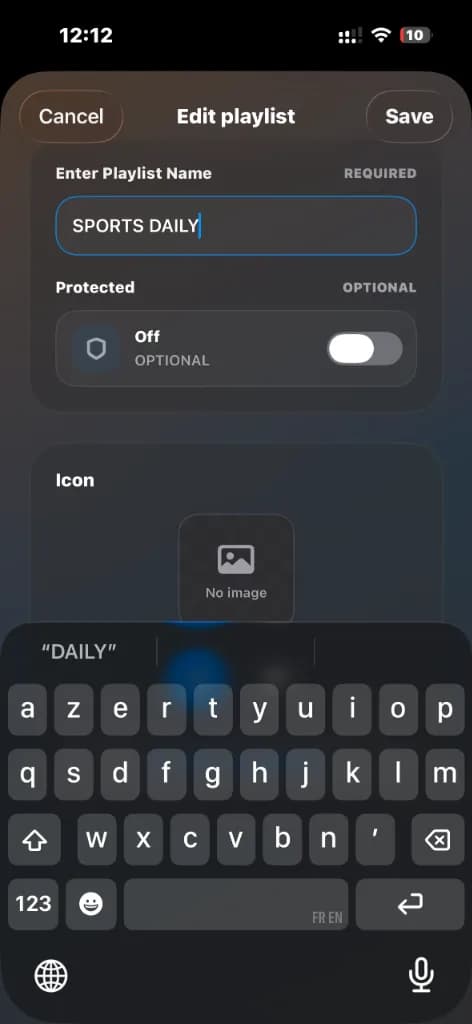
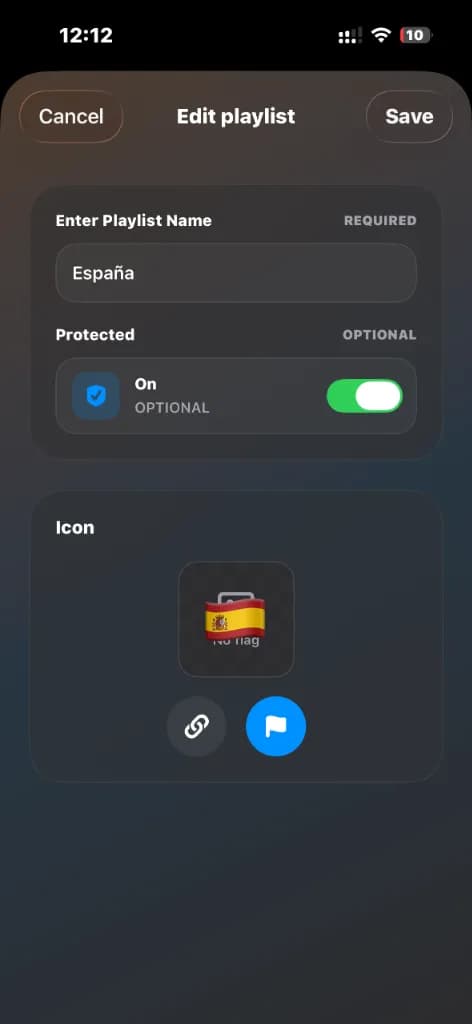
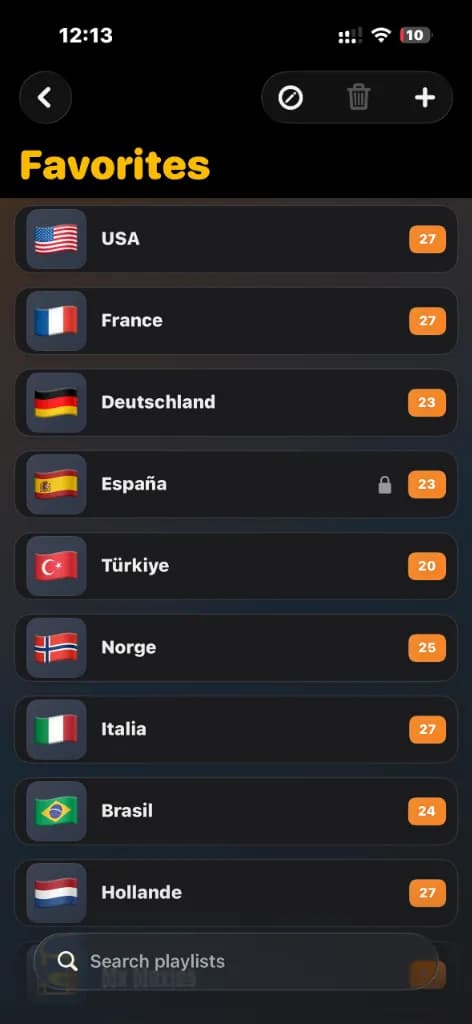
Once the PIN is set up, you can restrict access to any playlist or group. Go to your playlists, edit a playlist (such as 'España' or adult content categories), toggle the 'Protected' switch to 'On', and click Save. A lock icon will instantly appear next to the playlist in your dashboard.
3. Secure Age-Restricted Content
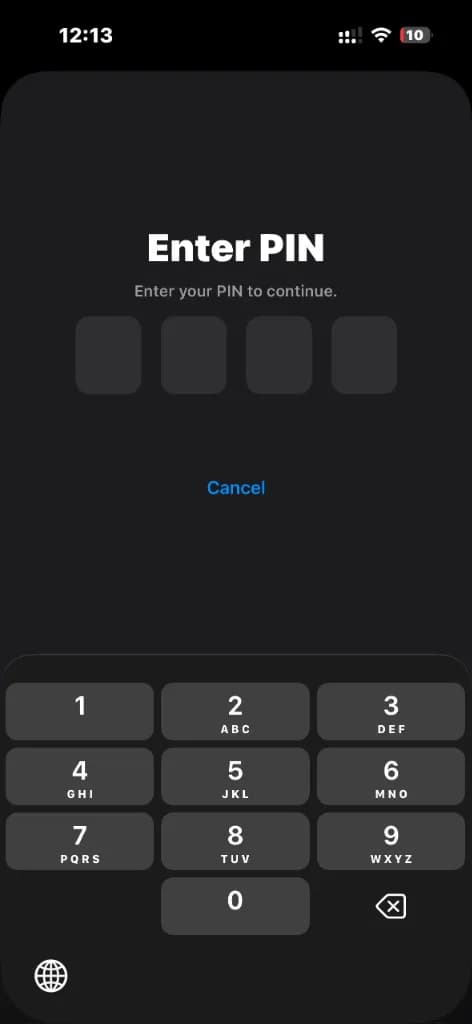
Whenever any user tries to open a protected playlist, the app will display a secure 'Enter PIN' keypad. The content will remain fully locked and hidden from previews until the correct 4-digit PIN is entered. This prevents children from accessing adult content or sensitive playlists without your permission.
More Family Safety Features
Instant Cloud Sync
Lock a category on your dashboard, and it instantly syncs and locks on your children's Smart TV.
Hide Lock Indicators
Optionally hide locked items entirely from the main lists so children do not see them.
Custom Profile Filters
Create child-friendly profiles with custom M3U filters restricted by the main PIN.
Stream Safely with 1IPTV Premium
Unlock robust parental controls, playlist protection, and real-time syncing across all family devices.
Get Premium Now